
If you are seeking assistance, we may ask for admin access to help troubleshoot an issue.
This process allows you to create a temporary URL for us to log in to your website. Then you can disable the login link manually, or it can expire.
1. How to Create a Temporary Login Account
Step-by-Step Instructions
- In WordPress, Click Add New under Plugins.
- In the input, search for Temporary Login Without Password.
- Click Install Now.
- Click Activate.
- On the sidebar under Users, click Temporary Logins.
- Click Create New.
- Email – Enter support@musicmakertheme.com
- Role: Select Administrator – Required to modify code and plugins,
- Expiry: Select Three Days and up. – You can change this after you get help.
- Language: English.
- Click the Submit button.
- Click the Click to Copy button.
- Paste and send us the temporary link in an email.
We cannot properly troubleshoot issues without admin access to see the issues firsthand.
If we cannot gain access, it may take longer to solve your issues.
2. How to Disable Temporary Login Links
- In WordPress, click Temporary Logins under Users on the sidebar.
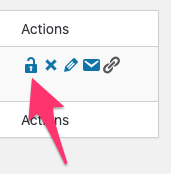
- Next to the account you want to disable, click the Disable icon under Actions.
3. Reactivating Expired Temporary Links
If you previously created a temporary login link that has expired, you will need to update the Extend Expiry settings for the link.
- In WordPress, click Temporary Logins under Users on the sidebar.
- Click the Pencil edit icon.
- Update the Extend Expiry to Three Days or more.
- Click the Submit button.
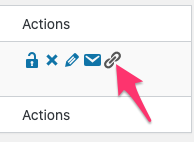
- Click the Copy Login Link icon under Actions.
- Paste and send us the temporary link in an email.
4. Related FAQs
Why do you need a temporary login to my website?
A temporary login allows us to access your WordPress dashboard to troubleshoot issues directly, which can be more efficient in helping solve problems.
What if I’m not comfortable providing admin access?
We cannot properly troubleshoot issues without admin access to see the issues firsthand. If access is not provided, it may increase the time to solve the issue.
How long should I set the temporary login to last?
It is suggested to set the expiry to Three Days or more. You can change this after you get help.
Can I use the temporary login again if the issue isn’t resolved?
Yes, you can reactivate an expired temporary login link by updating the Extend Expiry settings.
What if I forgot to copy the temporary login link?
You can copy the login link anytime by going to Temporary Logins under Users on the sidebar. Then click the Copy Login Link icon under Actions.
Will the temporary login affect my website’s security?
The temporary login is designed to be temporary and can be disabled or removed once the support team has finished troubleshooting.
What permissions should I grant to the temporary login?
The Administrator role is required to modify code and plugins.
Can I create a temporary login with a different role?
No. The Administrator role is necessary for troubleshooting. This gives us access to edit theme code to troubleshoot.
Need Help?
1. Try searching for answers. Try searching different terms if you can't find a answer. 2. Try troubleshooting if something is not working.
3. If you can't find answers, click to leave a comment. Provide website links and detailed information.